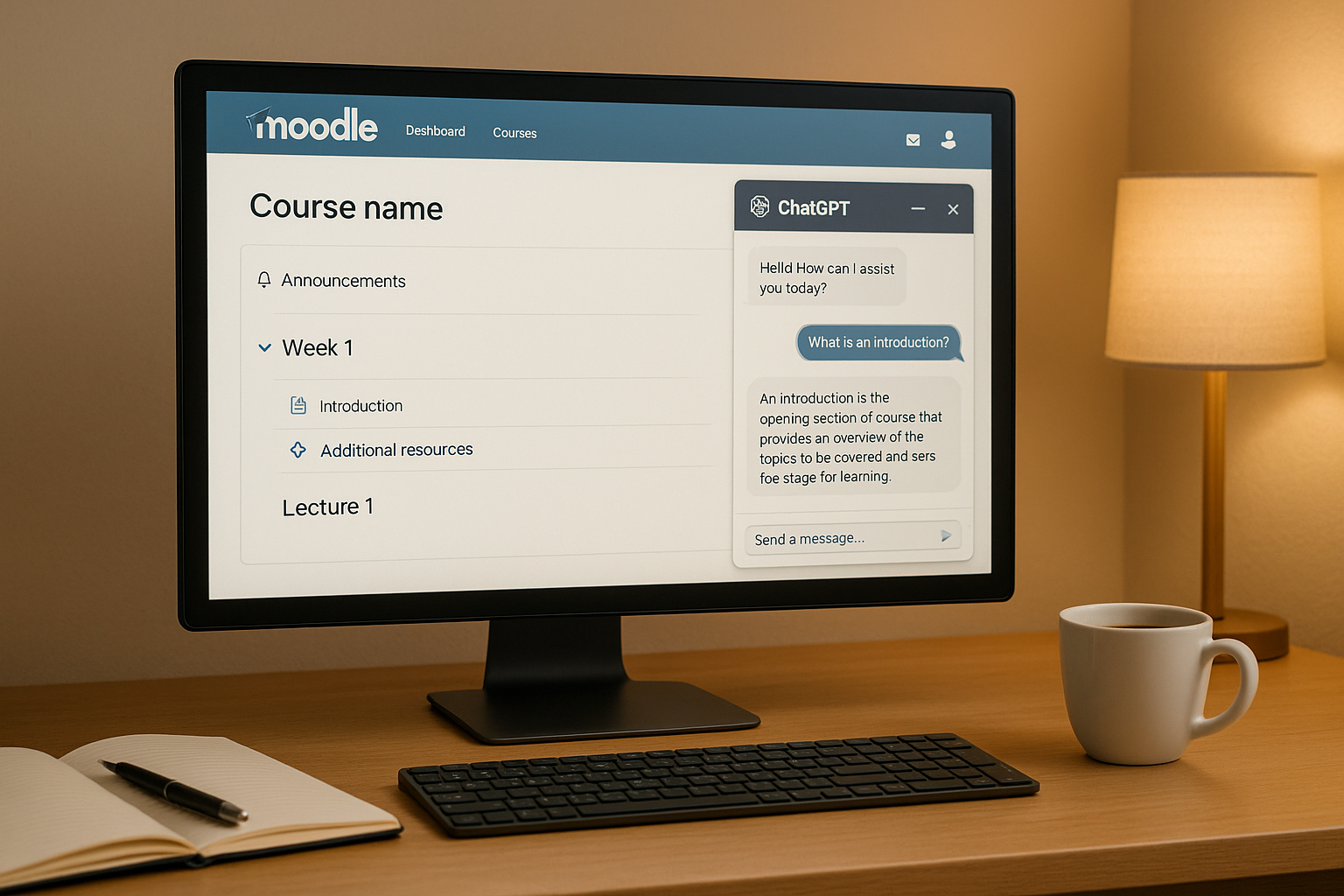
Want to bring AI to your Moodle LMS? Adding ChatGPT can help automate grading, provide 24/7 homework help, and simplify course management. Here's how to get started:
Key Steps:
-
Check System Requirements:
-
Choose an Integration Method:
- OpenAI Chat Block: Easiest setup, minimal maintenance.
- Direct API Connection: Advanced customization, requires coding skills.
- No-Code Tools: Use platforms like Zapier for automation.
-
Install the Plugin:
- Go to Moodle's admin panel.
- Install the OpenAI Chat Block plugin.
- Enter your API key and configure settings.
-
Set Permissions & Roles:
- Assign access based on user roles (e.g., teachers, students).
- Define assistant roles like "Tutor" or "Teaching Assistant."
-
Secure Your Data:
- Use HTTPS, anonymize data, and limit access to sensitive information.
Quick Comparison:
| Integration Method | Technical Skill Needed | Cost | Setup Time |
|---|---|---|---|
| OpenAI Chat Block | Low | Free (API usage applies) | Quick and simple |
| Direct API Connection | High | Development resources needed | Time-intensive |
| No-Code Tools (e.g., Zapier) | Low | Subscription + API usage | Moderate |
ChatGPT Open AI on Moodle
System Requirements
Before connecting ChatGPT to your Moodle LMS, it's crucial to confirm your system meets all the technical requirements. This step helps prevent any compatibility problems and ensures the integration process goes smoothly.
Moodle Admin Access
To integrate ChatGPT, you'll need site administrator privileges within your Moodle installation. These permissions allow you to perform key tasks, such as:
| Administrative Task | Required Permission |
|---|---|
| Plugin Installation | Access to Site Administration > Plugins |
| System Configuration | Ability to adjust global settings |
| API Integration | Rights to manage external services |
| User Management | Control over assigning roles |
Once you've verified your administrator rights, you can move forward with configuring the OpenAI API.
OpenAI API Setup
Setting up the OpenAI API requires the following:
- An active OpenAI account with API access
- A valid API key from your OpenAI dashboard
- Awareness of API usage costs and limits
It's a good idea to set usage caps, monitor your API activity, and enable alerts to keep track of expenses. The cost of using the API depends on token consumption, which will vary based on how you implement it.
After securing API access, make sure your Moodle system matches the required technical specifications.
Moodle Version Check
Your Moodle installation must meet these technical requirements:
| Requirement | Minimum Specification |
|---|---|
| Moodle Version | 3.9 or newer (4.0+ recommended) |
| PHP Version | 7.3 or later |
| Database | MySQL or PostgreSQL (latest stable version) |
| Memory | Adequate for API operations |
For the best performance and security, ensure your server environment is properly configured with:
- HTTPS enabled and SSL certificates up to date
- Firewall rules that permit API calls
- Regular system backups before making changes
Integration Options
Once you've confirmed system compatibility, the next step is selecting an integration method that aligns with your institution's technical capabilities and goals. Here are three primary options to consider:
OpenAI Chat Block Setup
The OpenAI Chat Block plugin is the easiest way to get started. It adds a chat interface directly to course pages, enabling students to interact with ChatGPT.
| Feature | Description |
|---|---|
| Technical Expertise | Basic Moodle admin skills required |
| Cost | Free plugin + OpenAI API usage |
| Maintenance | Minimal upkeep |
| Key Benefit | Quick and straightforward setup |
After entering your OpenAI API key, the plugin provides a chat window on course pages where students can ask questions and receive AI-generated responses. It’s a simple, low-maintenance solution for immediate functionality.
Direct API Connection
For institutions seeking advanced customization and control, a Direct API Connection is the way to go. This approach requires Moodle 4.0 or higher, along with expertise in PHP and APIs.
| Component | Requirement |
|---|---|
| Server Environment | PHP-based setup |
| API Knowledge | Familiarity with OpenAI and Moodle REST APIs |
| Development Skills | Proficiency in PHP, JSON, and REST APIs |
| Security Setup | Custom encryption and data filtering |
This method unlocks advanced features like custom response formatting, integration with course content, personalized learning pathways, and enhanced data security measures. However, it does demand significant technical expertise and development resources.
No-Code Integration Tools
For a balance between ease of use and functionality, no-code tools like Zapier are an excellent choice. These platforms require minimal technical skills while offering robust automation options.
| Automation Example | Benefit |
|---|---|
| Forum Response | Automatically generate AI replies to student questions |
| Content Generation | Create supplementary materials based on course topics |
| Assignment Feedback | Provide preliminary reviews of student submissions |
One community college reported a 30% reduction in support tickets by using no-code tools for automation. These tools typically require a subscription fee (ranging from $20 to $100 per month) in addition to API costs.
Cost Considerations
Each method comes with its own cost structure. The OpenAI Chat Block plugin is free to install but requires budgeting for OpenAI API usage. Direct API connections may involve higher upfront development costs, while no-code tools combine subscription fees with API expenses.
Once you've chosen the integration method that suits your needs, you can move forward with the plugin installation process.
Plugin Installation Steps
Here's how to install the ChatGPT plugin in Moodle step by step.
Plugin Download and Setup
To get started, you'll need to access the Moodle admin panel and install the OpenAI Chat Block plugin:
- Log in as an administrator and go to Site Administration > Plugins > Install plugins.
- Search for "OpenAI Chat Block" in the plugin repository. This will show the available integration options.
| Installation Step | Key Consideration |
|---|---|
| Version Check | Make sure you're using Moodle 3.9 or a newer version |
API Connection Setup
Once the plugin is installed, connect it to OpenAI's API:
- Head to Site Administration > Plugins > Blocks > OpenAI Chat Block.
- Enter your OpenAI API key in the provided field.
- Choose your preferred GPT model. GPT-3.5-turbo is a good choice for balancing performance and cost.
- Configure the following key parameters:
| Parameter | Recommended Setting | Purpose |
|---|---|---|
| Temperature | 0.3–0.5 | Adjusts the balance between creativity and consistency in responses |
| Max Tokens | 2,000 | Sets a limit on the length of responses |
| Context Window | 3–5 messages | Helps maintain the flow of the conversation |
After completing these steps, you're ready to test the plugin.
Installation Check
To ensure everything is working as expected, follow these verification steps:
-
Basic Functionality Test
Add the ChatGPT block to a test course page and check for the following:Test Type Expected Outcome Response Time Responses should load in under 5 seconds Error Handling Displays clear and helpful error messages Content Relevance Responses should align with the course context -
System Integration
Confirm that the plugin integrates seamlessly with your Moodle setup. Look for these signs:- The ChatGPT block is available in the "Add a block" menu.
- API calls are visible in your OpenAI dashboard.
- User permissions are applied correctly for various roles.
If you run into issues, check your server logs for error messages. Problems often stem from API key configuration or server permissions. For assistance, reach out to your hosting provider or Moodle administrator.
ChatGPT Settings
Once installed, it's time to fine-tune the settings to ensure optimal performance.
Assistant Roles
You can define specific roles for the assistant, tailoring its behavior to suit different needs. Here's a breakdown of common roles:
| Role Type | Purpose | Temp Range |
|---|---|---|
| Teaching Assistant | Clarifies course content and explains key concepts | 0.3–0.4 |
| Tutor | Offers problem-solving guidance and practice | 0.4–0.5 |
| Administrative Support | Handles questions about course logistics and policies | 0.2–0.3 |
To create or customize a new role, go to Site Administration > Plugins > Blocks > OpenAI Chat Block > Roles. Add clear instructions to define each role's behavior and set boundaries.
Usage Controls
Usage controls help manage resources effectively while maintaining a smooth experience. Here are some recommended measures:
| Control Type | Recommendation | Purpose |
|---|---|---|
| Message Length | Set a token limit that balances detail with brevity | Ensures responses are clear without wasting resources |
| Query Frequency | Restrict the number of queries per user in a timeframe | Helps balance server load and accessibility |
| User Access | Assign role-based permissions | Limits feature access based on user roles |
You can configure these settings under Site Administration > Plugins > Blocks > OpenAI Chat Block > Usage Settings.
Custom Content Setup
Make the assistant's responses more relevant by integrating course-specific materials. Update system prompts with key concepts and upload course content to align its knowledge base with your teaching goals. Additionally, create a repository of FAQs to ensure consistent answers that reflect your course's objectives.
Use the plugin's built-in dashboard to review analytics and feedback. This allows you to adjust settings based on interaction patterns and improve the assistant's effectiveness over time.
sbb-itb-5ab00cc
Common Issues and Fixes
When problems arise during plugin installation or API integration, these troubleshooting steps can help you get back on track quickly.
API Key Issues
Problems with your API key can disrupt integration. Here's how to address some common challenges:
| Issue | Cause | Solution |
|---|---|---|
| Invalid Key Error | Key copied incorrectly or formatted wrong | Double-check that the key starts with "sk-" and has no extra spaces |
| Authentication Failed | Key is expired or revoked | Generate a new key from the OpenAI dashboard |
| Rate Limit Exceeded | Usage quota has been reached | Review your usage and consider upgrading your plan if necessary |
Installation Problems
Installation issues often stem from incompatibilities or misconfigurations. Here’s how to troubleshoot frequent problems:
Version Mismatch
Ensure your Moodle version is compatible. Most ChatGPT plugins require Moodle 4.0 or higher.
Missing Dependencies
Verify that your server has the necessary components installed:
- PHP cURL extension
- JSON extension
- OpenSSL support
- Proper database permissions
Permission Errors
Set the correct folder permissions (755) during the installation process:
| Directory | Permission | When to Set |
|---|---|---|
| /moodle/blocks | 755 | During installation |
| /moodle/mod | 755 | During installation |
| /moodle/local | 755 | During installation |
Once installation issues are resolved, you can shift your focus to improving ChatGPT's performance.
Response Quality
Fine-tuning ChatGPT's response quality requires careful configuration and ongoing adjustments.
Model Selection and Temperature Settings
Tailor these settings to match your specific use case:
| Use Case | Recommended Model | Temperature Setting |
|---|---|---|
| Factual Responses | GPT-4 | 0.2–0.3 |
| Creative Discussions | GPT-4 | 0.6–0.7 |
| Technical Explanations | GPT-3.5 Turbo | 0.3–0.4 |
Improving Context and Relevance
Boost the relevance of responses by:
- Customizing system prompts with course-specific terms
- Adding content filters to ensure responses are suitable for educational use
- Keeping conversation history intact for better context awareness
If problems persist, check the plugin’s debug logs under Site Administration > Development > Debugging messages. Regular monitoring and adjustments will help maintain high-quality responses in your LMS environment.
Advanced Features
ChatGPT goes beyond basic functionality, offering tools designed to improve how educators deliver and manage learning experiences.
Assignment Grading
Grading becomes more efficient with ChatGPT, as it provides an initial AI-driven evaluation that instructors can refine and personalize.
Here’s how automated grading works:
- Set up grading prompts that align with rubric criteria.
- Define evaluation parameters to assess content quality, structure, and adherence to requirements.
- Enable detailed feedback tailored to specific areas of improvement.
| Assessment Type | AI Focus Areas | Instructor’s Role |
|---|---|---|
| Essays | Thesis clarity, evidence quality, logical flow | Review AI feedback and add personalized comments |
| Short Answers | Key concept coverage and accuracy | Verify AI's assessment and adjust scoring |
| Discussion Posts | Depth of engagement and critical thinking | Ensure fairness in AI feedback and refine as needed |
Course Content Creation
ChatGPT simplifies content creation by using an "outline expansion" approach to generate a variety of educational materials.
For quizzes, it can produce:
- Multiple-choice questions tailored to different difficulty levels.
- True/false statements directly linked to course materials.
- Short-answer prompts complete with explanations.
Additionally, ChatGPT can craft realistic case studies that align with course objectives, helping students connect theory to practice.
Language Support
ChatGPT’s multilingual abilities make learning more accessible for students from diverse linguistic backgrounds. It automatically identifies and adapts to a user’s preferred language.
Key language features include:
- Real-time translation of course materials, ensuring inclusivity.
- Simplifying complex concepts and assignment instructions in the student’s language.
- Providing feedback in multiple languages to suit individual needs.
This capability also supports personalized learning by assessing a student’s language proficiency, adjusting content delivery accordingly, and offering additional language resources as needed.
Data Security
Integrating ChatGPT with Moodle comes with the challenge of leveraging AI's capabilities while ensuring strict compliance with data protection and privacy standards.
Student Privacy
Safeguarding student information is a top priority, requiring robust measures to secure data exchanged between Moodle and ChatGPT.
| Security Measure | Implementation | Purpose |
|---|---|---|
| Data Encryption | HTTPS/TLS protocols | Protects course data during transit |
| PII Protection | Data anonymization | Maintains FERPA compliance |
| Access Logging | Activity monitoring | Tracks system usage |
| Data Retention | Limited storage periods | Reduces exposure to sensitive data |
To meet FERPA and similar privacy regulations, institutions must avoid sharing student records without explicit consent. Secure API connections are essential, as is ensuring ChatGPT data storage aligns with institutional policies.
Key steps to minimize data exposure include:
- Anonymizing user data before sending it to OpenAI servers.
- Restricting the types of data shared during API interactions.
- Encrypting stored chat transcripts to prevent unauthorized access.
- Establishing clear data deletion protocols to manage retention effectively.
User Permissions
While protecting data is crucial, enforcing strict user permissions adds another layer of security. Properly managing access ensures that users only interact with ChatGPT features relevant to their roles.
| Role | Access Level | Permitted Actions |
|---|---|---|
| Administrators | Full | Configure plugins, manage APIs |
| Teachers | Enhanced | Create content, use grading tools |
| Students | Limited | Access learning assistance features |
| Guests | None | No access to ChatGPT functionalities |
Best practices for managing permissions include:
- Conducting regular audits to verify user access rights.
- Monitoring system activity for unauthorized usage.
- Maintaining detailed documentation of permission changes.
- Providing training to staff on security protocols and best practices.
Moodle administrators can use the platform's role-based permission system to assign specific capabilities to each user group. Enabling detailed logging of ChatGPT interactions and setting up alerts for unusual activity further strengthens security. Regular assessments help ensure the integration remains secure while safeguarding sensitive educational data.
Summary
Here's a quick rundown of the integration process for using ChatGPT with Moodle LMS. This setup not only enhances functionality but also ensures security through these essential steps:
- Prerequisites: Admin access and a valid OpenAI API key are required.
- Installation: Choose between a plugin-based setup or direct API integration.
- Configuration: Define user roles, permissions, and content preferences.
- Security: Implement data protection measures and set up access controls.
After installation, fine-tuning settings and troubleshooting common issues complete the process.
Integration Methods at a Glance
| Integration Method | Required Technical Skill |
|---|---|
| OpenAI Chat Block | Low |
| Direct API Connection | High |
| No-Code Tools | Low |
Who Benefits from Integration?
- Educators: Simplified content creation and automated grading tools.
- Students: Around-the-clock learning support and tailored feedback.
- Administrators: Easier platform management with fewer support challenges.
For successful integration, it's crucial to ensure proper system setup, accurate configuration, and ongoing security monitoring. Regularly review usage, update security protocols, and adjust ChatGPT settings as needed to maintain optimal performance.
For more expert tips and insights, check out Made with ChatGPT.
FAQs
Integrating ChatGPT with Moodle LMS brings a range of practical advantages for both educators and students. For educators, it simplifies time-consuming tasks such as designing quizzes, developing course materials, and offering immediate feedback to students. This not only saves effort but also allows teachers to focus more on engaging with their students and enhancing the overall learning experience. Plus, ChatGPT can handle routine inquiries, making interactions more efficient and personalized.
For students, ChatGPT serves as a virtual tutor, ready to answer questions, explain challenging concepts, and provide assignment guidance. This creates a more interactive and supportive learning environment, encouraging students to tackle problems independently while still having a reliable resource at their fingertips.
To securely add ChatGPT to your Moodle LMS, here’s what you need to do:
- Choose reliable plugins: Opt for integration tools or plugins from reputable sources that are regularly updated to patch any security issues.
- Set up API keys with care: Limit permissions when configuring API keys and keep an eye on their usage to block any unauthorized access.
- Safeguard user data: Don’t share sensitive or personal information with ChatGPT. Make sure you’re aligned with data privacy laws like FERPA or GDPR, depending on your region.
These steps will help you maintain strong data security and privacy while incorporating ChatGPT into your Moodle LMS.
When figuring out the best way to connect ChatGPT with Moodle, it’s important to weigh a few key factors:
-
Ease of Use: If you’re looking for a straightforward setup and want to avoid coding, No-Code Tools are a great choice. These tools are intuitive and often come with ready-made integrations that simplify the process.
-
Customization: Need more control over how ChatGPT operates within Moodle? A Direct API Connection offers flexibility and advanced customization options. However, this approach does require programming expertise.
-
Specific Features: The OpenAI Chat Block is tailored specifically for Moodle users. It’s easy to set up and provides smooth integration, making it an excellent option for educators seeking a hassle-free solution.
Ultimately, the best choice depends on your technical skills, how much customization you want, and the specific requirements of your Moodle environment.